


If you've been using Elementor to build WordPress websites for a long time, and you switch to Kadence Theme + Gutenberg for the first time, you'll probably have a very strong feeling of discrepancy: the pages are fine, but when you come across “structured content” such as article archives, WooCommerce product details, product category pages, Mega Menu, breadcrumb navigation, and mobile filtering, you'll realize that Kadence is not the same as Elementor at all. Category pages, brand pages, Mega Menu, breadcrumb navigation, mobile filtering and other "structured content", you will find that Kadence's thinking is not the same as Elementor's. The current boundaries of Kadence's official capabilities are also very clear: the theme structure relies more on Hooked Elements, and WooCommerce's deeper templates rely on Kadence Shop Kit's Product Templates (Woo Templates), rather than the same set of visualizations as Elementor. template logic as Elementor does, rather than wrapping all pages in the same set of visualizations.
This article is not a general introduction to Kadence, but a complete review based on a recent real trade showroom project we did. The client's requirements were very clear:The whole site try to use WordPress native Gutenberg editor, do not use Elementor, the requirements of lighter, more stable, more conducive to SEO, and post maintenance costs should be low. It is also because of this project that we went through the key issues of Kadence theme order page, article system, product templates, brand page, Mega Menu, breadcrumbs, Off Canvas Sidebar for mobile and so on. The final conclusion was straightforward:Kadence is perfectly capable of making complex websites, but only if you accept that it's a native WordPress logic of “theme global structure + block content + dynamic templates” and not a stand-in for Elementor.
Why Kadence was chosen for this project instead of continuing to use Elementor
The project ended up with Kadence, not because Kadence is fancier than Elementor, but because the client wanted something that wasn't “fancier” but lighter, more structured, and more maintainable over time. Theme itself is responsible for the global structure and theme layer capabilities, Kadence Blocks are used to enhance the Gutenberg layout, Hooked Elements are used to take over the one-page, archive, and content insertion positions, and WooCommerce product page, archive, and product card templates are taken care of by WooCommerce Templates, which are part of the Kadence Shop Kit. Templates of Kadence Shop Kit. In other words, Kadence's system division of labor is more clear than Elementor, which is suitable for foreign trade sites, enterprise sites, product display sites and other sites that emphasize more on structure and maintainability.
From the perspective of project execution, this choice has been proved to be right later on. It's true that the page editing experience is not as “WYSIWYG” as Elementor, but the structure of the site will be cleaner: single pages will be handled in Pages, articles will be archived in Archive, product templates will be in Woo Templates, and custom content types will be in CPT + Dynamic Content. In other words, Kadence is better suited to building a site as a “content system” than as a bunch of drag-and-drop visual pages.
Kadence build the most important thinking switch: pages, templates, dynamic content to be handled hierarchically
After moving from Elementor to Kadence, the first thing we had to do was not to learn a certain functionality, but to change our way of thinking. In Elementor, we used to do things in the same way: homepage, article templates, product pages, archive pages, almost all of them can be taken over by Theme Builder. But in Kadence, this way of thinking will hit a wall very quickly. Because Kadence's best practices are actually layered:Regular pages go to regular pages, articles go to the article system, WooCommerce goes to WooCommerce, and custom content types go to CPT.
To take the simplest example: home page, about us, contact us, services page, FAQ, these pages are still essentially “standalone content”, and the most standard approach is to build the pages directly in Pages, and then build the content with Gutenberg / Kadence Blocks. Kadence Blocks. They don't need to be forced into a templating system for the sake of “templating”, because a templating system is better suited to managing a “uniform structure of similar content” rather than the individual content of each separate page. Kadence's official documentation on Hooked Elements and Template Elements essentially emphasizes that templates are better suited for reusable structures and that content should remain in the content itself.
What to do with regular pages: Single pages under Kadence should still be in Pages.
The home page, about us, contact us, and several service pages in this project were all ultimately done directly in Pages using the Gutenberg editor. Why is this the most stable way to do it? Because these pages are more like “content containers” and don't rely on archival queries, single-article loops, or dynamic fields for products. What you really need to control: content widths, header hierarchies, image blocks, button styles, graphic layout, responsive layouts - Kadence Blocks is designed to solve these problems.
In the process of implementation, the way we actually use is: first unify the whole station's color, font size, button style, Section spacing and content width, and then build Hero, Selling Points Area, Product Recommendation Area, FAQ, CTA and other modules in the page. The biggest benefit of doing this is that common pages are always simple, and when customers want to change copy, change images, or add blocks, they don't need to understand complex template inheritance relationships. This is one of the most important principles that we've learned since switching from Elementor to Kadence: don't think about templates when you can solve a problem directly on the content page.
How to build an article system: the correct relationship between News pages, category pages and Post Archive.
The post system is another key part of this project. A lot of users who are doing blogging for the first time under Kadence get confused: is the News portal a regular page, an article page, or a category page? What we ended up doing was to create a normal page called News, and then go to Settings → Reading and designate it as a Posts Page. itself recognizes posts pages through the page_for_posts option, which is the most standard way to get blog entries.
In this way, “News” becomes the entry point for blog listings, while “Industry News” and “Company News” continue to exist as categorized archive pages. . In other words, these three types of pages essentially belong to the article archive system. Kadence's article archive templates and Archive Content substitution logic are naturally suited to handle this kind of structure: a main blog page, plus multiple category pages, share the same archive system, just in the title, description, breadcrumb, and query results.
Here's an important detail to remember: Posts Page is not the same as a normal page. Once News is set up as a posts page, it's more like a “blog container page”, where the main content displayed on the frontend is the list of posts, not the body of the text you're filling out in that page editor. A lot of WordPress developer documentation and community experience has also emphasized over and over again that a Posts Page is more like a container than a normal standalone content page.
Why the breadcrumbs on the article category page often don't automatically bring up the “News” layer?
There is a typical phenomenon in this project: Brand single page breadcrumbs can be displayed as Home / Brands / brand01 when has_archive is turned on, but the article category page is often displayed as Home / Industry News instead. , but the article category page tends to only show up as Home / News / Industry News, instead of automatically becoming Home / News / Industry News. It's not that Kadence is wrong, it's that WordPress's hierarchical perception of the CPT archive and Posts Page is not a set of logic. The CPT's has_archive is part of the native structure, while the Posts Page is just the blog's CPT's has_archive is part of the native structure, and Posts Page is just a blog entry, it's not a natural parent for all category archives.
So, if you see the breadcrumb missing the “News” layer in the article category page, it's normal, and Kadence officially supports switching the breadcrumb engine to other engines such as Yoast, Rank Math, SEOPress, etc. This is also because different engines don't handle the blog layer in the same way. Kadence officially supports switching breadcrumb engine to other engines such as Yoast, Rank Math, SEOPress, etc. This is also because different engines don't have the same way to deal with blog layers. For blogs, if you are very concerned about Home / News / Category Name, it is usually more stable to switch to a SEO breadcrumb engine that is more suitable for customizing the hierarchy, or manually fill in the links in the archive template than to continue to rely on the built-in breadcrumbs of Kadence.
WooCommerce Product Detail Pages: Don't Hardwire Plain Elements Anymore!
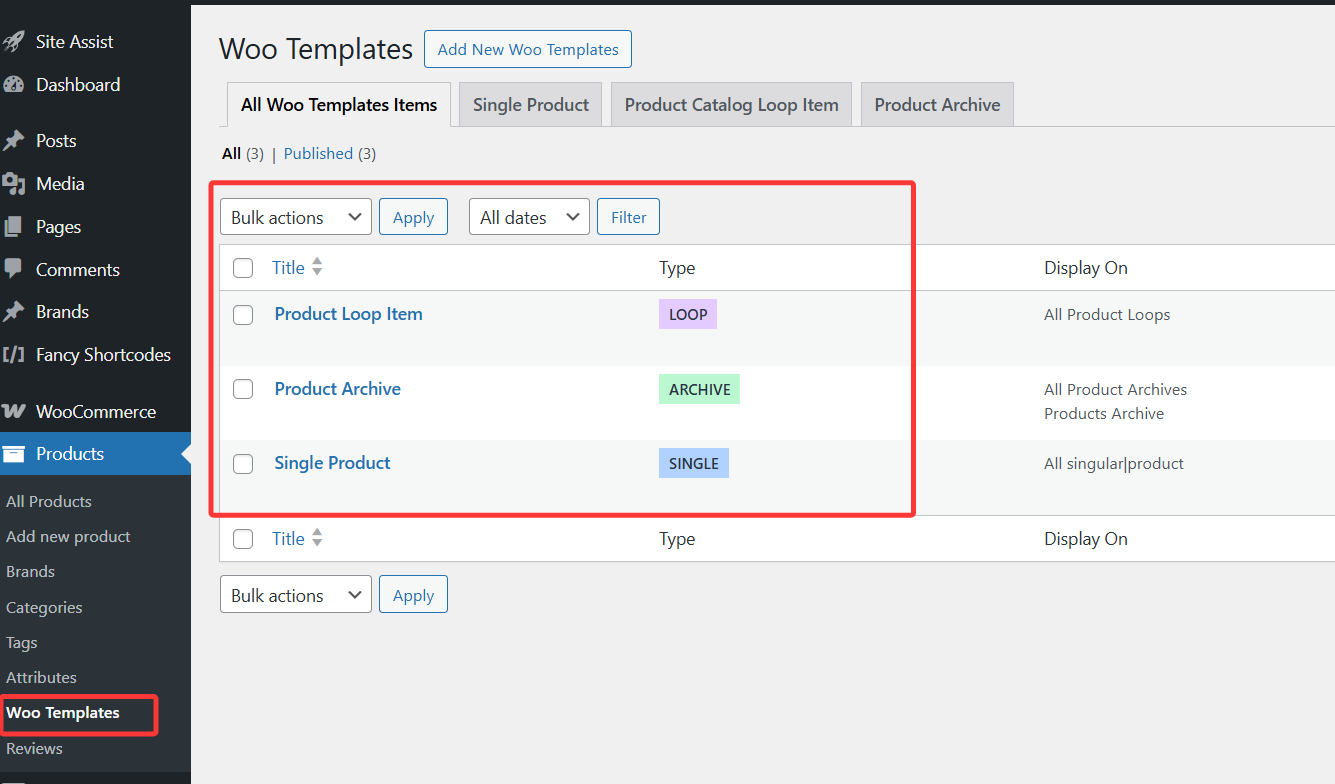
This was one of the most critical cognitive shifts of the entire project. At first we tried building templates in Kadence Elements and then taking over WooCommerce single product pages with Replace Single Post Content, which looked a lot like the Elementor days of “applying a template”, but it quickly became clear that this was the wrong way to go. This seemed to be similar to the Elementor-era "apply a template" approach, but it quickly became clear that this was not the right way to go. Here's why: WooCommerce single product pages are not just article content pages, they have their own complete product template structure. Kadence officials have now made this very clear - WooCommerce related templates should go Kadence Shop Kit's Product Templates (Woo Templates)< instead of replacing the product page content area with a regular Template Element.
In the end, we adopted the right program:
- Product details page → Single Product Woo Template
- Product Category Page → Product Archive Woo Template
- Product Card → Product Catalog Loop Item Template
Each of these three layers is responsible for its own thing: Single Product Template is responsible for the structure of the product detail page, such as gallery, title, price, description, parameters, CTA; Product Archive Template is responsible for the overall layout of the product category page and query; Loop Item Template is responsible for the appearance and content of a single product card. Kadence's official definition of Product Templates is just like this: use Woo Template Blocks to dynamically output various elements of WooCommerce, instead of treating Woo pages as ordinary article templates.
Product category page why easy to get stuck: structure, navigation, screening and style can not be mixed to do
The product category page is the easiest place for people to “look almost done, but the details are always wrong”. This is where almost all of the high frequency problems we encountered in this project were centered:
- The breadcrumb is needed at the top, but the
Product Breadcrumbsblock can only be used for single product templates - The left side of the product category navigation desktop can be, to the tablet and cell phone all expand, the experience is very poor!
- Product card templates can be built, but there are many details such as the number of summary lines, hover shading, borders, button positions, etc. that are not readily available.
- The off-canvas filter button above the product list can be turned on, but there are no panel switches for button centering, desktop hiding, and other behaviors
The root of these problems is really the same: just because Kadence Product Archive is responsible for structure and querying doesn't mean that all the visual details will be made into visualization options. The official position of Product Archive Woo Templates is clear: you can use Archive: Main Query Block for a standard archive layout, or Advanced Query Loop Block for a more flexible control. more flexible control. When it comes to the details of the card and mobile interactions, there's still a lot of CSS to fill in the gaps.
That's what we ended up with as a very practical Kadence principle:
Solve the structure of 80% with templates and blocks, and the details of the final 20% with CSS.
For example, two-line summary omission, hover shading, button centering, and hiding mobile filter buttons on the desktop are all better suited for CSS closure than finding switches in panels, and Kadence Blocks officially supports block-level customization of CSS.
The best solution for mobile product category pages is not to stuff a left sidebar, but Off Canvas Sidebar.
On desktop, it's common to put a category navigation bar on the left side of the product category page; however, on tablets and cell phones, it's a very poor experience to have the entire category navigation bar directly on the page. The reference site's “show one button, click it to bring up all the categories from the right” approach is actually closer to the standard experience of modern WooCommerce sites, and Kadence officially provides a Catalog Off Canvas Sidebar capability in the WooCommerce Addons, which is essentially for this scenario.
But here's an easy pitfall: many people go to the backend by the documentation and can't find the Off Canvas SidebarIn the end, I thought it was a function that was not available. We encountered this problem in this project, and finally realized that the key is not in “will not use”, but in theIs the corresponding WooCommerce Addons capability enabled?This is a typical problem in the Kadence system. This is a typical problem in the Kadence system: the functionality is not absent, but the module is not turned on.
Ultimately the most stable mobile category page solution is:
- Desktop side retains the left side category bar
- Tablet / Mobile hide the left category bar
- Keep only one filter / sort button at the top
- Click on it to slide the off-canvas panel to the right.
This solution is both user-friendly and more in line with Kadence's current WooCommerce capability boundaries.
Brand is not part of the product classification system: it is more appropriate to use custom post types page to do this!
There's another type of content that's very typical of this project: the Brand custom article type page. The client's reference site has a set of brand portals, with multiple brand logo cards at the top, which are clicked on to enter the corresponding content detail pages, with introductions, application scenarios, related content, and other structures underneath. At the beginning, some people would instinctively think: can we just make Brand into a WooCommerce product category? But this project quickly proved that this approach is not appropriate. Because Brand here is not the same as WooCommerce product categories, it is more like a separate content system.
In the end, we adopted the program:
- Use ACF to create a Brand Custom Post Type (CPT)
- One piece of content per Brand
- Creating Brand One-Page Templates with Kadence Template Elements
- Uniformly placed navigation area at the top
- The content area below goes through the same set of templates, replacing only the specific Brand content
This is officially supported by Kadence: Hooked Elements for template takeover of custom post types, and Dynamic Content / Dynamic HTML for dynamic output of Post Title, Post Content, and ACF fields into templates.
Why do you insert Content block will report an error.
This is a very specific, yet typical pitfall we stepped into when building Brand's custom post type one-page template.
We've already set up the Brand CPT, and we've also set up the Template Element as a detail page template, and it turns out that when trying to use the core Content block to display the body, the backend reports an error directly:
Block ‘content’ can not be inserted
At first it's easy to mistake this for a problem with ACF, CPT, or template settings, but the real reason to look into this is that don't rely on the core Content / Post Content placeholder block for outputting body text in the context of Kadence Template Elements. Kadence's current official recommendation is to use the Dynamic HTML block and set the dynamic source to Post Content. The official Kadence Dynamic Content docs also explicitly The official Kadence Dynamic Content documentation also makes it clear that it can dynamically output default content such as Post Title and Post Content, as well as calling custom fields such as ACF, Meta Box, and so on.
So in Kadence's CPT one-page templates, if you need to output body text, the safest thing to do is not to keep trying to insert the Content block, but:
Dynamic HTML → Source: Post Content
Why does Brand's breadcrumb work on the archive?
Brand The reason this set of content later showed up in breadcrumbs as:
Home / Brands / brand01
The key reason for this is that we ended up turning on has_archive for the Brand CPT; WordPress natively supports custom post types via the has_archive parameter of register_post_type(); once Brand actually has an archive level, it's easier for Kadence to recognize the middle layer. Generate a CPT archive; once Brand actually has an archive level, it's easier for Kadence's breadcrumb to recognize the middle layer.
This phenomenon is useful for understanding the structure of WordPress:
As long as it's part of the native structure, it's easier for the theme and the breadcrumb engine to recognize it automatically; if it's just “some page you made by hand”, the theme may not treat it as a system-level hierarchy.
Mega Menu is not a normal menu and is done differently in Kadence.
In this project, the top navigation also needs to realize a common style of Mega Menu: after the main menu is hovered, a whole full-width sub-menu area will appear underneath, with 4 columns in a row, which can be displayed in multiple rows. Many webmasters intuitively call this effect “drop-down menu”, but from the actual realization point of view, it is no longer an ordinary secondary menu, but a Mega Menu. Kadence's official documentation on Advanced Navigation also explicitly refers to this mode as a Mega Menu, and supports full-width layout, multi-column layout, and insertion of custom block content.
The most suitable implementation for this type of menu is not to continue hard nesting with the normal menu structure:
- Use the Advanced Header / Advanced Navigation to create a new header.
- Enables Mega Menu for parent menu items.
- Using Column Layout in Mega Menu Containers
- A set of headings + sub-links in each column, with images, descriptions or buttons if necessary
The benefits of this approach are clear structure, more professional vision, and also more suitable for the organization of information in corporate and foreign trade sites. Especially if you have a lot of product lines, brand entrances, and solution entrances, Mega Menu is much more readable than ordinary menus.
Why Kadence is often “in the document, not found in the background”?
If you're new to Kadence, it's easy to wonder one thing:
Why is it that a feature is clearly written in the official documentation, but I can't find it at all in the backend?
We encountered this at least three times during this project:
- Hooked Elements not found
- Can't find Woo Templates
- Can't find Off Canvas Sidebar
In the end, we found that almost all of them are related to the same reason: The relevant module is not enabled, or needs the corresponding Pro / Addons capability. Kadence's official dependencies on these modules are very clear: Hooked Elements requires Theme Kit Pro to be enabled; Woo Templates requires Shop Kit's Product Templates to be enabled; and some of the WooCommerce-related enhancements are under WooCommerce Addons. Woo Templates needs to enable Product Templates of Shop Kit; some WooCommerce related enhancements are hooked under WooCommerce Addons.
So a very important habit of troubleshooting when doing a Kadence project is:
Make sure the corresponding module is enabled in the backend before discussing how the feature works.
It saves a lot of ineffective trial and error.
Many users think they don't know how to use Kadence, but in fact the more common problem is not having the corresponding Pro module enabled, or not having the functionality of Theme Pro, Blocks Pro, Shop Kit, and common extensions sorted out.
Kadence officially splits the product line up by modules, for example, Theme Kit Pro for Hooked Elements, additional templates, and theme enhancements, Blocks Pro for dynamic content, conditional displays, and more specialized blocks, and Shop Kit for extensions. Shop Kit extends WooCommerce's product templates and store functionality.
For those who want to minimize the cost of trial and error and get their sites up and running faster, it's better to have all the modules you need, and WP Master Builder also offers Kadence Pro and popular extensions for building corporate websites, content sites, trade showrooms, and WooCommerce sites.
If you want to deploy a Kadence theme site quickly and with less fuss, you can also build a Kadence theme site directly in WP Site Builder for Kadence Pro and common extensions.
Our final summary of Kadence's best practices for building websites
After this project, we've made a very clear summary of the path of building websites under the Kadence theme. For enterprise official website, foreign trade showcase site, WooCommerce product showcase site, this structure is very stable at present:
Ordinary pages, such as the home page, about us, contact us, service page, all placed directly in Pages with Gutenberg build; article system through the News Page + Posts Page + Category Archive composed of a unified blog structure; article details page and article archive page with Hooked Elements / Archive system to manage. WooCommerce is completely layered: product detail pages are managed by Single Product Woo Template, product category pages are managed by Product Archive Woo Template, and product cards are managed by Cards. Cards are managed separately with the Catalog Loop Item Template. Brand pages are no longer tied to product categories, but instead use Brand CPT + ACF + Template Elements + Dynamic HTML / Dynamic Content to form an independent brand content system. Mega Menu, mobile filtering, breadcrumbs, etc. were accomplished based on Kadence's existing module capabilities and necessary CSS additions.
The best thing about this structure is not that it's “exceptionally functional,” but that it is:
Clear, stable and well maintained.
Pages are pages, templates are templates, dynamic content is dynamic content, Woo is Woo, and branding is branding. You won't have to cram everything into a huge template system like you do in Elementor, and then be afraid to change one thing at a later stage.
Conclusion: Kadence is not a replacement for Elementor, but a more native way to build a WordPress site.
If I could summarize this project in one sentence, I would say:
Kadence is not a replacement for Elementor, but rather a method of building websites that is closer to WordPress' native logic.
It does have a different learning curve than Elementor, and when you first get started you're more likely to get stuck in places like template structure, archiving logic, and dynamic content. But as long as you really straighten out this set of ideas, you will find that Kadence is very suitable for those websites with higher requirements on structure, performance and maintainability. Especially for foreign trade display site, enterprise official website, product display WooCommerce website, its advantages will become more and more obvious.
If you are also moving from Elementor to Kadence + Gutenberg, or are researching how to build a WordPress site in a more lightweight way, hopefully this article will help you go the extra mile.
Want to build a corporate website, foreign trade showcase or WooCommerce product showcase with Kadence themes?
If you are also switching from Elementor to Gutenberg, or are having headaches with product templates, custom post type pages, Mega Menu, post archives, breadcrumb navigation, and mobile filtering, welcome to follow WP Website Builder. We will keep updating more WordPress website building solutions, structure design and troubleshooting experience based on real projects.




No Comments